

Capital Technology Group Blog
Capital Technology Group has been serving the Arkansas area since 1994, providing IT Support such as technical helpdesk support, computer support, and consulting to small and medium-sized businesses.
How Separating Personal and Work Browser Profiles Stops Data Leaks

Picture this: an employee is logged into their personal Google or Microsoft account to check a personal email. In the very next tab, they open your company's cloud dashboard to edit a sensitive spreadsheet. It feels completely harmless, but in reality, that single overlapping browser session is a quiet source of data leaks, compliance headaches, and constant calls to your IT help desk.
That’s because if personal identities and corporate cloud accounts mingle in the same browser instance, the browser gets confused. It attempts to sync saved passwords, autofill data, browsing history, and extension permissions across both environments.
The fix is simple… enforce dedicated browser profiles for your entire team.
Here is how keeping these cloud identities separate protects your organization’s security and saves your staff valuable time.
Why Mixing Browser Profiles Threatens Your Business
When employees use one default browser window for everything, your corporate data is exposed to avoidable risks:
- Accidental Data Leakage - Saved personal passwords, bookmarks, and auto-fill information can sync directly to corporate cloud storage, while confidential business files might end up accidentally saved to a personal cloud drive.
- Rogue Browser Extensions - An unauthorized browser extension installed for personal use (like a shopping coupon finder) gains access to read data on corporate tabs, opening the door to credential theft or malware.
- Access Denied Lockouts - Workers can often get blocked from corporate resources because the browser defaults to their personal credentials when opening shared links.
- Compliance Violations - Mixing personal browsing habits into an enterprise environment violates strict data privacy standards like HIPAA or CMMC.
How Browser Profile Separation Solves the Problem
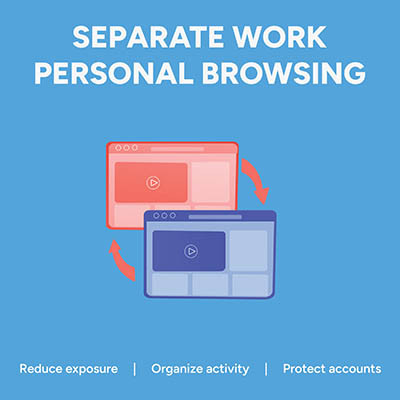
Modern web browsers like Microsoft Edge and Google Chrome allow users to create isolated container environments called Profiles.
Think of a browser profile as a distinct, firewalled version of the application. The corporate profile holds business bookmarks, corporate logins, approved extensions, and enterprise security policies. The personal profile handles everything else, keeping it all completely isolated from business data.
When you implement profile separation, your business gains immediate advantages:
- Zero Identity Confusion - Clicking a corporate link automatically routes through the business profile, eliminating "Access Denied" errors and reducing IT ticket volume.
- Isolated Data Syncing - Password vaults and history remain strictly within company boundaries.
- Seamless Offboarding - If an employee leaves, your IT team can remotely wipe the managed corporate profile without altering or touching the employee's personal browser data.
A word of advice: to fully minimize your risk, you need an airtight Bring Your Own Device policy. This policy will help you maintain your control over your business resources, even if those resources are tied to hardware your employees own. Part of this policy should establish that a business user profile is not to be used for personal endeavors, and vice versa.
You Should Encourage Caution
While individual users can set up profiles on their own, manually managing browser security across an entire organization can be time-consuming. Plus, you still run the risk of someone intermixing business data with their own. We can help fix both obstacles.
Through centralized management tools, business leaders can automatically deploy managed browser profiles, enforce security policies, restrict malicious extensions, and ensure corporate data never leaves corporate channels. It's that easy to prevent an expensive data leak while keeping your team focused and productive.
Want to secure your team’s cloud environments and streamline your technology deployment? Call Capital Technology Group at (501) 375-1111 to schedule a security consultation today.
About the author
Mobile? Grab this Article
Comments